Create a Shopify order channel
Create a Shopify order channel to connect your Shopify store and start importing orders automatically.
Learn more about which Shopify plans support Third-party carrier-calculated shipping (CCS).
Caution
If you use Profile management, note that order channels are created in the current profile group. If an order channel should belong only to a specific profile group, create it while logged in to a profile in that profile group.
Steps
Go to >
Select
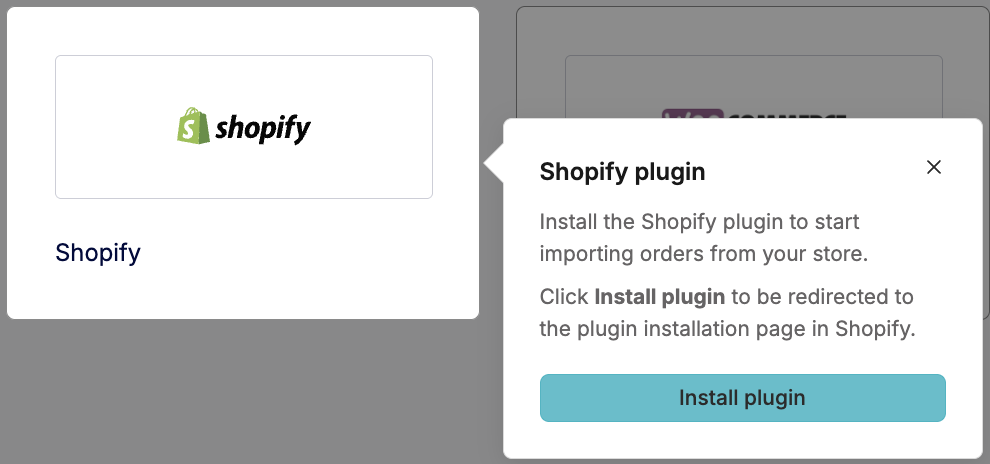
Select Shopify and follow the instructions to install the app
In nShift Delivery, enter a Name
Tip
Use clear and descriptive names for each order channel to simplify management.
Select Active if the order channel should start importing orders immediately
Select Create shipments automatically if shipments should be created automatically when orders are imported
Select Fulfill orders automatically if you want nShift to send shipment information back to your shop once the order is processed
Select Connect
In Shopify, authorize the nShift Delivery and Shopify connection
Result
After the connection is authorized, the Shopify order channel is created and order synchronization is active.
Next step
After creating the order channel, add at least one delivery option to define how shipments are created for orders from this channel. You must connect a delivery option before you can create shipments. See Create a delivery option.
Field descriptions
Field | Description |
|---|---|
Active | Activates the order channel and allows order import |
Name | Internal name used to identify the order channel |
Create shipments automatically | Automatically creates shipments when orders are imported |
Fulfill orders automatically | Automatically sends shipment information back to your shop |
Order channel ID | Unique identifier for the order channel |